
Prepare a PDF floorplan and review one page at a time
Choose a useful PDF source, exclude legends and cover sheets, calibrate a known dimension and check the imported geometry before saving.
Build3D Floorplans product documentation · Reviewed 22 October 2026
Choose the drawing, not its presentation
Start with the original vector PDF when it is available. A PDF can contain lines and text, a scanned photograph, or both; the file extension does not establish its quality. A vector export usually provides clearer boundaries than a screenshot of the same page. Open the source at high zoom and check whether small stand numbers and door openings remain readable. Keep a copy of the original before changing it.
Prepare a safe, focused file
Use a file within the uploader’s displayed size limit. Export a clean copy without password protection, attached files or active content. Do not just rename an unrelated format to PDF. For a multipage document, identify the page containing the actual plan; a cover sheet, sponsor page or perspective illustration is not another floor. If the drawing contains a customer’s confidential details, remove information that is unnecessary for the conversion and confirm that you may upload it.
Choose the import method before the file
Create or open a floorplan in Studio and select Import floorplan. Choose Standard import or AI-assisted import first. Standard import lets you choose the relevant PDF pages and review their credit cost. With AI assistance, select one page, request the quote and read the processing notice before accepting it. AI processing has different charging rules: see the AI import guide. Neither method guarantees that every printed mark becomes the right object.
Calibrate using a dimension you can verify
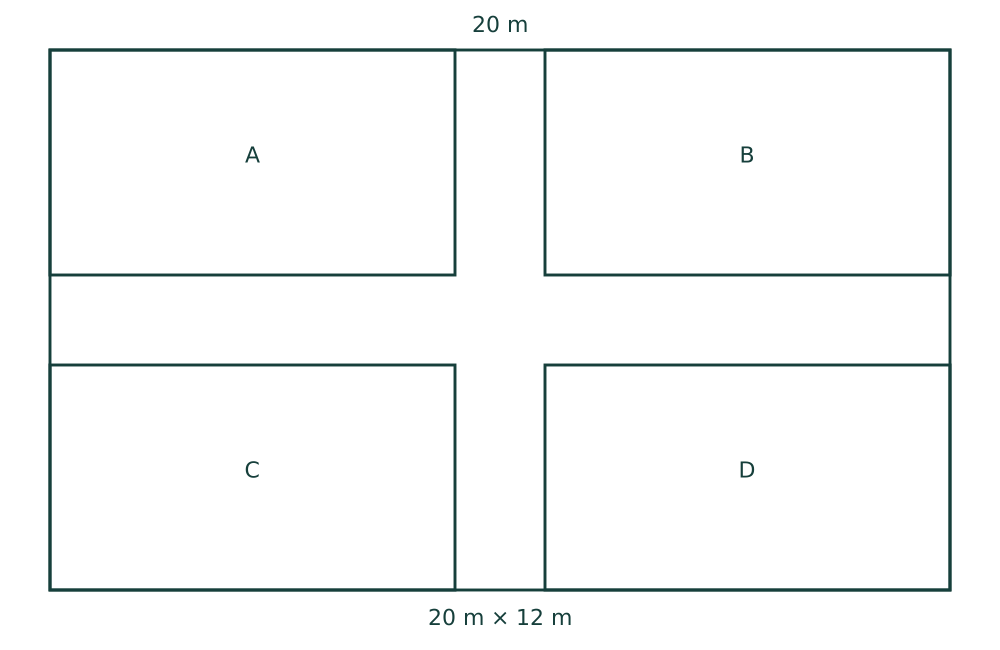
The sample below has a known 20 m outer width. It is a synthetic input drawing, not a claimed customer result. Download it to practise comparing a source dimension with the editable plan. With your own PDF, use a printed dimension you trust rather than the paper size or an assumed booth width. Confirm the plan units. A correctly proportioned drawing can still be the wrong physical size; set scale before evaluating walking distances or furniture sizes.
Compare boundaries before saving
Review the outer hall, interior areas, stand cells, doors and labels separately. Check that a legend has not become an area and that a concave hall has not become its rectangular bounding box. Zoom into a dense row of booths and compare its count and labels with the source. Treat unmatched details as review work, not proof that the source has no such object. Standard import reserves credits during processing and review, and charges when the reviewed result is saved; failed or cancelled standard imports release the hold.
If the result is incomplete
Try a cleaner export or a single relevant page before repeating the same import. Correct a small number of boundaries manually; for a systematic failure, use Import help and submit a private example after signing in. Describe the missing region and the expected object type. An import report does not consume conversion credits or promise a delivery date.