
Export a focused ASCII DXF for an editable exhibition plan
Prepare supported CAD model-space geometry, preserve units and angled outlines, and troubleshoot stray entities and missing paper layouts.
Build3D Floorplans product documentation · Reviewed 22 October 2026
Confirm what the importer accepts
Use a supported ASCII DXF export. DWG is a different format, and renaming a DWG extension does not convert its contents. Binary DXF, arbitrary 3D solids and CAD paper-space layouts are not interchangeable with the supported model-space drawing. Keep the original CAD file and export a copy for import. This workflow creates editable floorplan geometry; it is not a lossless CAD or BIM round trip.
Export the part of model space that matters
Inspect the model-space drawing for the exhibition floor, stands, doors and relevant labels. Move presentation-only material out of the export where your CAD software supports that workflow. A distant stray entity can greatly enlarge the drawing bounds and make the useful plan appear tiny. If a result seems empty, check its extents before assuming that no geometry was detected.
Check units and closed outlines
Confirm the CAD units and compare at least one known dimension after conversion. A millimetre-based source treated as metres changes scale dramatically even when the shape looks correct. Closed outlines give a clearer region boundary than disconnected presentation strokes. Check for gaps, overlapping segments and duplicate linework. Do not replace an angled or concave outline with a rectangle simply to make it easier to import.
Practise with a small controlled drawing
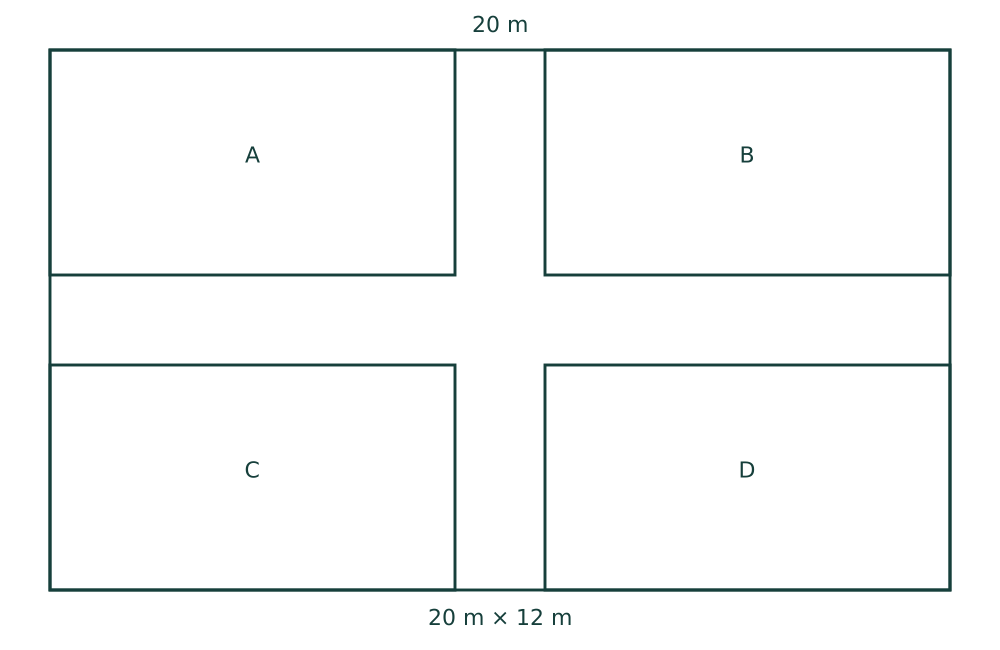
The downloadable sample contains an outer boundary and four interior spaces around an aisle. Its 20 m width gives you a known scale check. It is deliberately simple so you can separate a file-format problem from a complex-drawing problem. Open the sample in your CAD tool if available, inspect its model space, and then compare its imported extents with those of your venue export.
Review after conversion
Check the outer floor shape first, then interior cells and labels. Compare rotations and cutouts, especially for L-shaped stands. Inspect openings before generating routes. The 2D drawing may not specify wall height, stand design or furnishings; configure those properties in Studio rather than treating a default 3D box as a factual reconstruction of the venue.
Choose the next step from the symptom
For an extremely small plan, look for remote entities or the wrong units. For missing pages, remember that PDF page selection is not CAD paper-layout support: export the intended model-space content instead. For a repeated geometry problem, provide an authorised example through Import help, with the affected region and the expected result. Do not repeatedly spend credits on an unchanged export without investigating the cause.