
Calibrate a PNG or JPG floorplan without guessing its scale
Prepare a clear raster plan, distinguish pixels from metres, inspect irregular area boundaries and avoid common image-import mistakes.
Build3D Floorplans product documentation · Reviewed 22 October 2026
Start with a top-down drawing
Use a straight-on PNG or JPG export of the plan. A photograph taken at an angle contains perspective distortion: two equal lengths may occupy different numbers of pixels. Cropping that photograph does not remove the distortion. Obtain a top-down export when possible. Preserve thin walls, small labels and entrances; aggressive compression, filters and sharpening can merge nearby lines or create false edges.
Separate content from the legend
Before uploading, identify the actual plan boundary, the colour key, logos and any inset drawings. A green rectangle is not necessarily a tree, and a coloured region is not necessarily a booth. The importer uses visual evidence, but symbol classification still needs review. Keep a source copy beside the editable result so you can distinguish a printed symbol from a destination that visitors should be able to select.
Use one known measurement
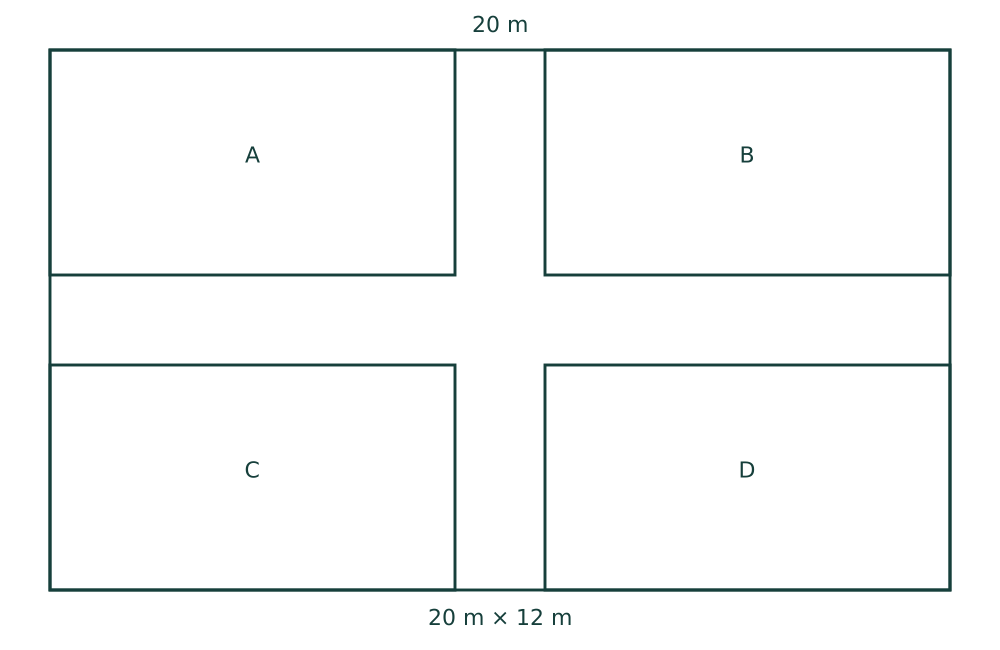
Pixels describe the image, not the real venue. Choose a reliable labelled dimension and confirm the same span in the imported plan. In the supplied sample, the entire outer width is 20 m; do not measure only the inner rooms and then assign them that width. Set the units and scale before adding furniture. Compare a second independent dimension if one exists. If the two checks disagree materially, investigate the source or perspective rather than averaging conflicting measurements.
Review shapes, not only rectangles
An area can be angled, L-shaped or concave. Check its outline around every indentation. The empty corner of an L-shaped region should not become walkable floor merely because it lies inside the region’s overall width and depth. Review internal booths independently of the containing area. A successful import notification confirms processing, not architectural accuracy.
Correct labels and object types
Zoom in before deciding that small imported objects are missing. Compare repeated symbols against the source and correct names, dimensions and classifications in the editor. Furniture, trees and destinations have different meanings. A decorative tree should not become a selectable exhibition stand; a visitor destination needs a useful name. Keep unknown details under review rather than assigning a confident label without evidence.
Finish with a viewing check
Inspect the plan in both 2D and 3D. Set object heights where the image cannot provide them; a top-down image does not contain a reliable height for every object. Check a phone-sized view as well as desktop. Before publishing navigation, test doors and aisles using the Wayfinder checklist. If image quality prevents a useful result, obtain a better source or submit a private import report.