
Try the Wayfinder demo and check routes between floors
Find a destination, choose a starting point, use floor views and test stairs or lifts in the public Wayfinder sample before configuring your own plan.
Build3D Floorplans product documentation · Reviewed 22 October 2026
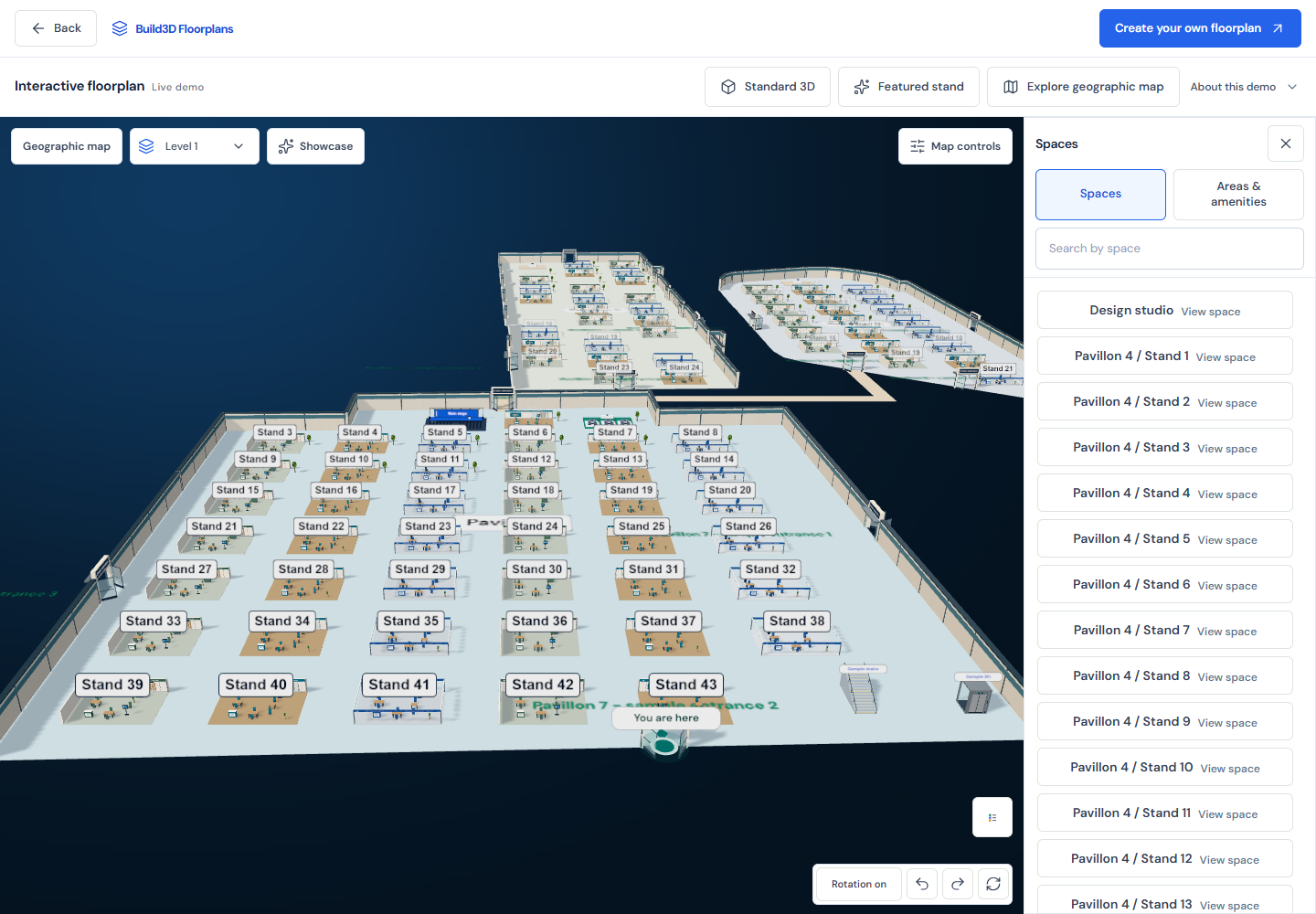
Open the sample without an account
The live Wayfinder demo is a public sample, not a customer project. Open the Spaces list and use Search by space to find Design studio. Select its View space action. The detail panel shows a starting-point control and Guide me there. This is the same navigation pattern to look for when testing a published visitor plan; the sample does not require an upload or spend your credits.
Choose where the route should begin
The starting point can be the You are here flag or an available named location. Confirm the start before selecting Guide me there. The resulting path relates to that chosen start; it does not prove the browser knows your physical position. To compare two possible entrances, change the starting location and regenerate the route rather than interpreting a single path as valid from anywhere in the building.
Check the geographic view
Open Explore geographic map in the public sample, then use Viewing floor to inspect one level or All floors. In whole-floorplan placement, the highlighted route retains its height as it follows the stairs or lift. Follow the floor-by-floor directions when stacked levels overlap on screen. For your own venue, align the drawing with known map points before sharing; independently placed halls need their own correct coordinates. The sample building footprints are mapped, while booths, indoor floors and paths are illustrative event layouts.
Switch between an overview and one floor
Use Viewing floor to select a particular level or show all floors. To try an upstairs destination, select All floors and search for Sky lounge. The combined view explains the building arrangement, while a single floor makes small destinations easier to inspect. After requesting a route, use the displayed floor steps and Show entire route where available to follow its progression. On a phone, reopen the Spaces panel when you need another destination instead of repeatedly moving the camera to search visually.
Test stairs and lifts deliberately
For your own multilevel plan, place the relevant stairs or lift elements and configure their floor connections. A decorative stair object alone does not create a navigable connection. Test a same-floor trip first, then one that must change floors. Try Avoid stairs (lifts only) separately. If there is no suitable connected lift, an unavailable route is more honest than a route that silently uses stairs. This option is not a certification of accessibility.
Explore the geographic example
In the live demo, choose Explore geographic map. Pan and switch 2D/3D views over the real Paris Expo Porte de Versailles location. Pavilions 4, 6 and 7 use OpenStreetMap building footprints at their mapped positions and scale. Booths, interior levels, entrances and routes are illustrative, not official visitor directions. Building outlines are credited to OpenStreetMap contributors under ODbL; their accuracy depends on the source data.
Understand location calibration
The You are here marker is a plan location. Enabling GPS requires calibration that connects points on the drawing with real geographic locations. A PDF or image by itself does not supply that mapping, and indoor location accuracy can vary. Do not describe the uncalibrated marker as live tracking. Check the configured origin and scale at the venue before using location-assisted navigation.
Separate an outside arrival from an inter-hall connection
A starting point outside a hall needs a clear approach to a valid visitor entrance. Place the marker near the actual arrival point and check that the entrance meets the hall boundary. A source-reference rectangle is not a walkable outdoor area. To connect separate halls, draw the real pedestrian walkway and configure its entrances or passages. A document may show hall diagrams side by side for presentation; that is not evidence that a corridor connects them in the venue.
Investigate a missing route
Check that the start and destination lie on the intended floor, that the containing area has the correct footprint, and that usable openings connect enclosed spaces. Inspect obstacles and inter-floor connections. Avoid treating every no-route message as a reason to remove walls. Test the final visitor link after publishing, because editing a private project and providing public navigation are separate steps. Wayfinder is not an emergency evacuation system or a substitute for venue safety procedures.